

Use Contact Direction together with Queue, Experience Flow, Channel, Evaluation Form, and other filters to analyze inbound and outbound interactions.
Contact Direction
Use Contact Direction together with Queue, Experience Flow, Channel, Evaluation Form, and other filters to distinguish between Inbound and Outbound interactions. Contact Direction applies to both Human Agent and AI Agent conversations. The available results must respect the selected direction when combined with routing, channel, agent, and evaluation filters.Interactions Page
The Interactions page includes two tabs:- Processed: Displays conversations that have completed Quality AI processing and are available for review, audit, and evaluation.
- Pending: Displays conversations awaiting processing or that failed validation. Successfully processed conversations move to the Processed tab.
Key Capabilities
- Review processed conversations for coaching, investigations, and quality analysis.
- Analyze evaluation scores, sentiment, topics, intents, emotions, and resolution outcomes.
- Review AI Agent, Human Agent, and AI-to-Human handoff conversations independently.
- Open the corresponding AI or Human audit segment directly from each conversation record.
- Identify processing failures independently for versioned AutoQA features, including By Question V1/V2 and By Agent V1/V2, when feature-level processing details are available.
- Filter conversations using queues, experience flows, agents, intents, keywords, channels, contact direction, evaluation metrics, and custom fields.
- Apply experience filters such as L1, L2, L3 intents, generated intents, resolution status, and duration status.
- Customize workspace with configurable columns, saved views, and timeline navigation.
- Track review status including agent acknowledgement and dispute status for evaluated conversations.
- Maintain V1 and V2 processing statuses independently. A failure in one version doesn’t affect the other.
Conversation Records
The conversation type determines the number of rows displayed.
Each record opens its corresponding audit segment.
AI Agent → Human Agent Handoff
When an interaction is transferred from an AI Agent to a Human Agent, Conversation Mining creates two separate evaluation records:- AI Agent Record: Represents the AI Agent segment and uses its assigned Experience Flow.
- Human Agent Record: Represents the Human Agent segment and uses its assigned Queue.
Record Behavior
- Each evaluation segment appears as an independent record.
- Selecting a Human Agent record opens the Human Agent audit segment.
- Selecting an AI Agent record opens the AI Agent audit segment.
- AI Agent records use Experience Flow assignments.
- Human Agent records use Queue assignments.
Processed Tab
The Processed tab (Processed Conversations) displays conversations that have completed Quality AI processing. Select a conversation to open the AI-Assisted Audit screen, where you can review the transcript, evaluation results, sentiment, audit details, and other conversation insights. For AI-to-Human conversations:- Selecting the AI Agent row opens the AI Agent audit segment.
- Selecting the Human Agent row opens the Human Agent audit segment.
Processing Status
Indicates the processing status of the conversation and applicable Quality AI features. For AutoQA, processing status is maintained independently for By Question V1, By Question V2, By Agent V1, and By Agent V2, when configured. Each feature version retains its own processing result. A failure in one version doesn’t overwrite, mask, or change the processing result of another version. For example, a conversation may have a successful By Question V1 result while By Question V2 has failed. The UI must preserve and display these version-specific results independently.The Pending tab is available only when Automation AI, Agent AI, or Contact Center AI (CCAI) conversation sources are enabled for the workspace.
Access Process Tab Conversations
Navigate to Quality AI > AutoQA > Conversation Mining > Processing.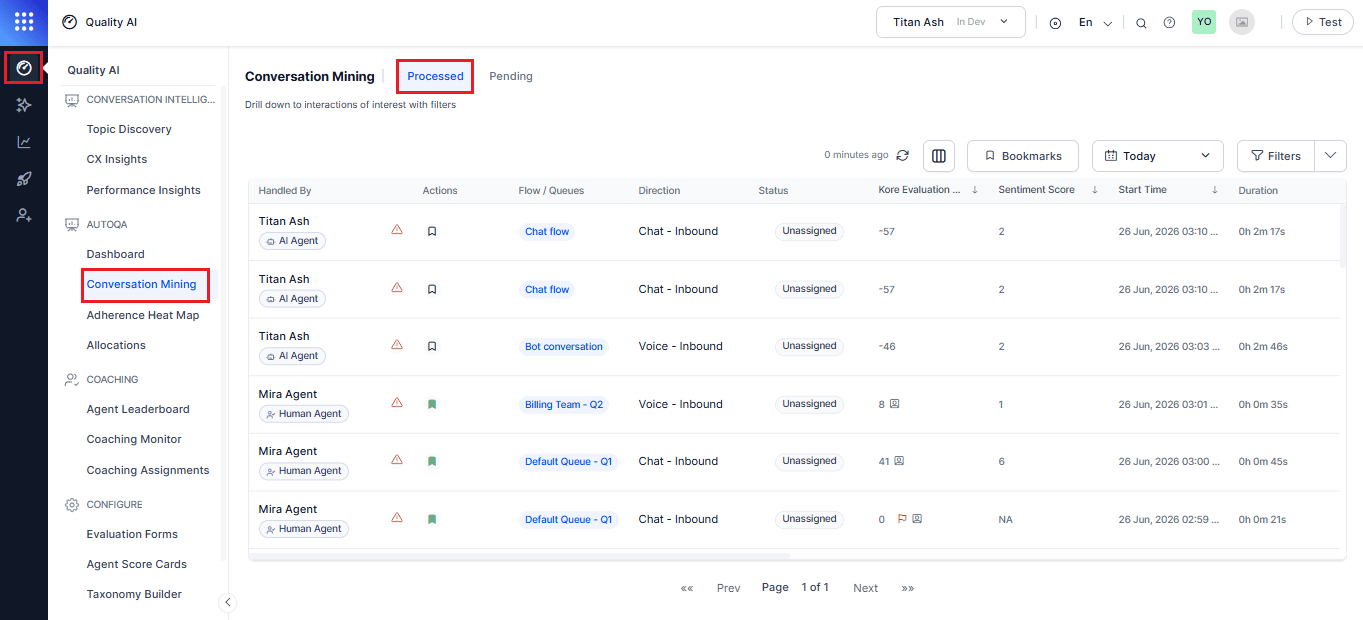
Filter by Processing Status
Supervisors use the Status filter on the Pending tab to view conversations by processing state. The filter includes the following options:- Select All: Displays all pending conversations regardless of status.
- Pending: Displays conversations queued for processing.
- In Progress: Displays conversations currently being processed.
- Failed: Displays conversations that failed validation. Selecting this option also reveals failure-specific sub-categories.
Conversation Grid Details
The Conversation Mining grid displays one record for every evaluation segment. You must create bookmarks in Settings before tagging interactions for future reference.
AI Agent Conversation Behavior
AI Agent conversation segments differ from Human Agent segments. For AI Agent conversations:- Experience Flow replaces Queue.
- AI evaluation forms are used.
- AI-specific evaluation metrics are used.
Pending Tab
The Pending tab displays conversations that haven’t completed Quality AI processing. This includes conversations in Pending, In Progress, or Failed processing states.- Pending: The conversation is queued and awaiting processing.
- In Progress: The conversation is currently being processed.
- Failed: The system doesn’t process the conversation successfully because it failed validation or processing. When available, the system displays the failure reason and applicable failure category.
The Pending tab is available only when Automation AI, Agent AI, or Contact Center AI (CCAI) conversation sources are enabled for the workspace.
Access Pending Conversations
Navigate to Quality AI > AutoQA > Conversation Mining > Pending.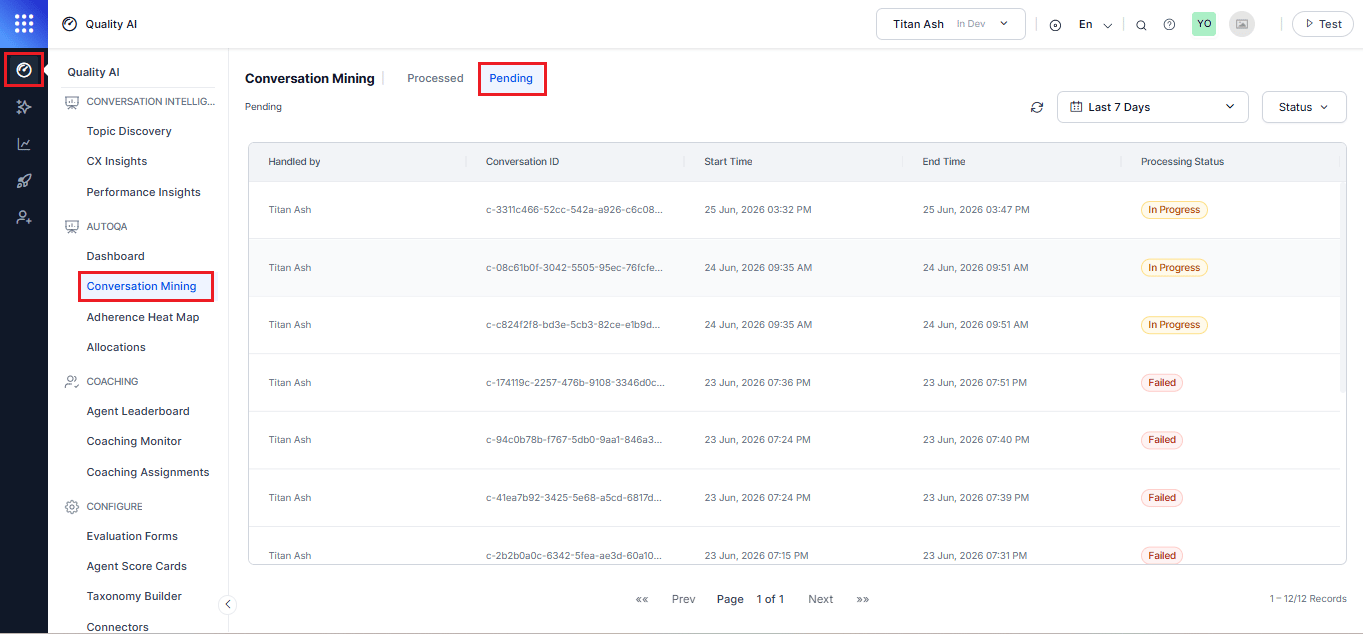
Pending Tab Columns
Filter By Processing Status Values
Use the Status filter on the Pending tab to filter conversations by processing state.Filter Conversations
Use the toolbar at the top of the Conversation Mining page to locate and manage conversations. Filters are available from the Conversation Mining toolbar and apply to the currently selected Processed or Pending tab. Filter availability and behavior may vary depending on the selected tab and the type of filter.Add New Filter
- Select Filters from the Conversation Mining toolbar.
- Select + Add New Filter.
- Select a filter category.
- Configure the filter and apply it.
Filter Categories
The filter panel includes:Filter by Efficiency
Filter by Efficiency analyzes emotional, behavioral, and qualitative aspects of customer interactions using sentiment, interaction metadata, and operational filters.Handled By
Filter conversations based on the type of agent that handled the interaction:- AI Agent: Shows conversations handled by an AI Agent.
- Human Agent: Shows conversations handled by a Human Agent.
Channels
Use this filter to view conversations based on how the interaction took place and its direction. Chat:- Inbound: Shows chat conversations initiated by the customer.
- Outbound: Shows chat conversations initiated by an agent or the organization.
- Inbound: Shows voice conversations initiated by the customer, such as incoming calls to an agent or AI Agent.
- Outbound: Shows voice conversations initiated by an agent or the organization, such as outgoing calls to a customer.
Audit Status
Filter conversations based on their audit status:- Assigned: Conversations assigned for audit.
- Audited: Conversations that have completed an audit.
- Not Assigned: Conversations that aren’t assigned for audit.
- Resolved: Conversations with a resolved audit status.
- Closed: Conversations with a closed audit status.
- Pending Agent Review: Conversations awaiting agent review.
- Pending Supervisor Review: Conversations awaiting supervisor review.
Audit Allocations
Select Audit Allocations to filter and view interactions associated with specific audit batches or allocation groups directly from Conversation Mining without manually filtering individual Conversation IDs.Duration Status
Select a Duration Status to control which interactions appear based on evaluation eligibility and duration:Session ID
Enter a Session ID to find a specific conversation session.Conversation ID
Enter a Conversation ID to find a specific conversation.Custom Conversation ID
Enter a Custom Conversation ID to find a conversation using an organization-specific identifier.Handled AI Agent
Filter conversations handled by a specific AI Agent.Experience Flow
Select or search for the Experience Flow associated with an AI-handled conversation.Human Agent
Filter conversations handled by a Human Agent.Queues
Select one or more Queues associated with human-handled conversations.Agents
Select one or more Agents to filter conversations handled by specific human agents.Combined AI Agent and Human Agent Filters
When filters for both AI Agent and Human Agent are applied, Conversation Mining uses OR logic between the two agent types. Results include conversations that match either the AI Agent criteria or the Human Agent criteria. Filters within each agent type continue to follow their configured filter behavior.Advanced Performance Filters
Enable additional performance-based filters.Filter by Experience
This category helps analyze emotional and qualitative aspects of customer interactions using sentiment and emotion-based filters.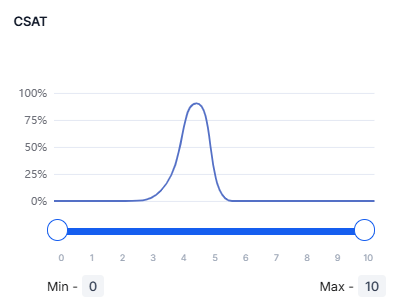
You can view the CSAT and Avg. Waiting Time filter parameters only when the Connector is in disabled mode.
Filter by Behavior
This category analyzes filters based on agent conduct and interaction dynamics. Agent Playbook Adherence is available only when a Playbook is configured for the selected form.
Filter by Keywords
This enables you to search, filter, and review conversations using specific keywords or phrases. You can filter by included or excluded keywords and by speaker, with results linked directly to the QA audit screen.Filter by Custom Fields
This helps to refine interactions using business-specific metadata from Express File or Agent AI integrations. Custom fields are dynamically available based on the selected date range. The system excludes interactions that doesn’t include the selected field from results. To apply a custom field filter:- Select Custom Fields from the Filter By panel.
- Select the Key from the dropdown. For example: Account ID.
- Enter the matching Value.
- (Optional) Select + Add Custom Field to include additional key-value pairs.
-
Select Apply or Save & Apply.
 Conversations that don’t carry the selected custom field are excluded from results entirely.
Filtered Interactions: 22).
Connector-Dependent Filters
The availability of certain filters depends on the Connector configuration. When Quality AI Express is disabled under Conversation Sources, the following filters are disabled:- By Experience: Avg. Waiting Time, AHT, and No. of Transfers
- By Efficiency: CSAT and Avg. Waiting Time
Manage Saved Filters
Use the Saved Filters UI to apply, store, and manage filter configurations on the Conversation Mining dashboard.If interactions aren’t used for audit allocation, you can apply the current filters without saving them as a reusable saved filter.