> ## Documentation Index
> Fetch the complete documentation index at: https://koreai-agentplatform-dev.mintlify.site/llms.txt
> Use this file to discover all available pages before exploring further.
# Conversation Mining
Conversation Mining provides supervisors with a centralized workspace to review, analyze, monitor, and audit customer interactions processed by Quality AI. It supports AI Agent, Human Agent, and AI Agent → Human Agent handoff conversations, including processed and pending interactions.
For AI Agent → Human Agent handoff interactions, the system represents the AI Agent and Human Agent portions as separate evaluation records. Supervisors can filter, review, audit, and evaluate each record independently. The Handled By field identifies whether a record belongs to an AI Agent or Human Agent segment.
Conversation Mining brings together conversation quality, evaluation scores, customer experience, business metadata, sentiment, topics, intents, emotions, resolution outcomes, and operational insights. These insights help supervisors conduct audits, coach agents, investigate issues, and analyze performance across Conversation Mining, AI-Assisted Audit, and Agent Dashboards.
Use Contact Direction together with Queue, Experience Flow, Channel, Evaluation Form, and other filters to analyze inbound and outbound interactions.
***
## Contact Direction
Use Contact Direction together with Queue, Experience Flow, Channel, Evaluation Form, and other filters to distinguish between Inbound and Outbound interactions.
Contact Direction applies to both Human Agent and AI Agent conversations. The available results must respect the selected direction when combined with routing, channel, agent, and evaluation filters.
***
## Interactions Page
The Interactions page includes two tabs:
* **Processed**: Displays conversations that have completed Quality AI processing and are available for review, audit, and evaluation.
* **Pending**: Displays conversations awaiting processing or that failed validation. Successfully processed conversations move to the Processed tab.
When you enable **Agent Accept & Dispute**, the **Processed** tab displays evaluation review status in the **Status** column and **Audit Status** filter.
## Key Capabilities
* Review processed conversations for coaching, investigations, and quality analysis.
* Analyze evaluation scores, sentiment, topics, intents, emotions, and resolution outcomes.
* Review AI Agent, Human Agent, and AI-to-Human handoff conversations independently.
* Open the corresponding AI or Human audit segment directly from each conversation record.
* Identify processing failures independently for versioned AutoQA features, including By Question V1/V2 and By Agent V1/V2, when feature-level processing details are available.
* Filter conversations using queues, experience flows, agents, intents, keywords, channels, contact direction, evaluation metrics, and custom fields.
* Apply experience filters such as L1, L2, L3 intents, generated intents, resolution status, and duration status.
* Customize workspace with configurable columns, saved views, and timeline navigation.
* Track review status including agent acknowledgement and dispute status for evaluated conversations.
* Maintain V1 and V2 processing statuses independently. A failure in one version doesn’t affect the other.
***
## Conversation Records
The conversation type determines the number of rows displayed.
| **Conversation Type** | **Records Displayed** |
| ---------------------------------- | --------------------------------------------------------- |
| **Human-only Conversation** | One Human Agent record. |
| **AI-only Conversation** | One AI Agent record. |
| **AI Agent → Human Agent Handoff** | Two separate records (AI Agent and Human Agent segments). |
Each record opens its corresponding audit segment.
***
### AI Agent → Human Agent Handoff
When an interaction is transferred from an AI Agent to a Human Agent, Conversation Mining creates two separate evaluation records:
* **AI Agent Record**: Represents the AI Agent segment and uses its assigned Experience Flow.
* **Human Agent Record**: Represents the Human Agent segment and uses its assigned Queue.
Each segment is evaluated independently. Scores, audit results, metrics, moments, intents, and other segment-specific data remain separate between the two records.
***
### Record Behavior
* Each evaluation segment appears as an independent record.
* Selecting a Human Agent record opens the Human Agent audit segment.
* Selecting an AI Agent record opens the AI Agent audit segment.
* AI Agent records use Experience Flow assignments.
* Human Agent records use Queue assignments.
***
## Processed Tab
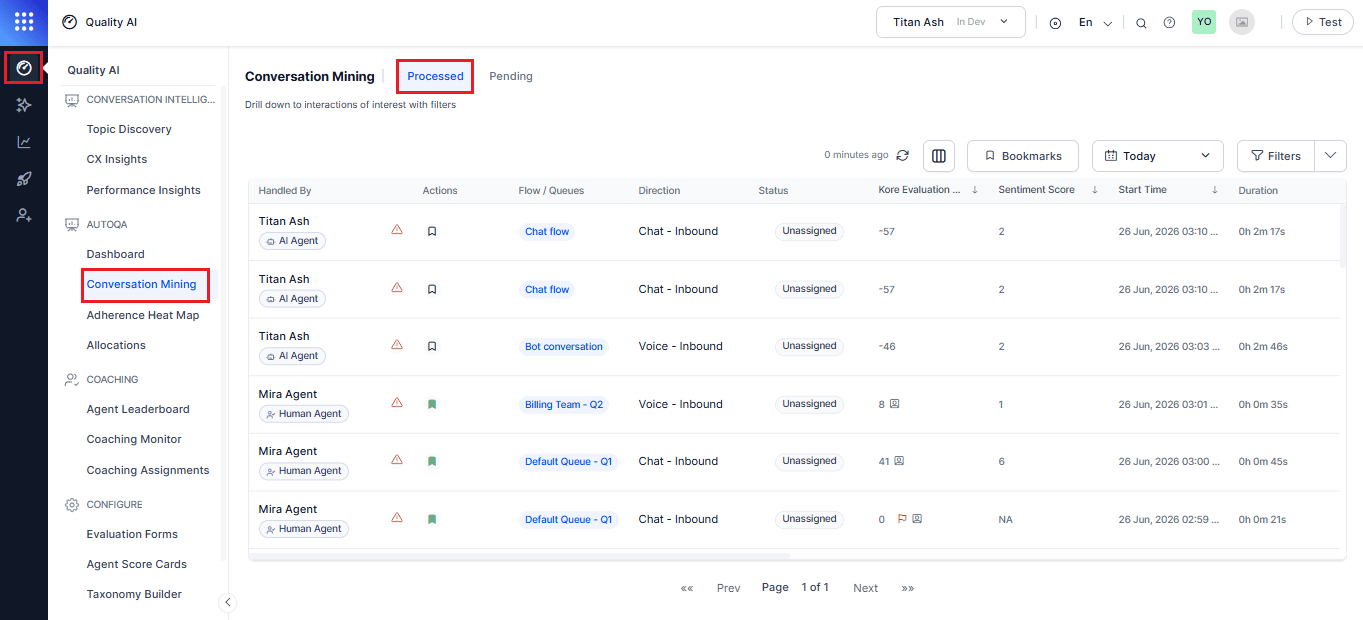
The **Processed** tab (Processed Conversations) displays conversations that have completed Quality AI processing. Select a conversation to open the **AI-Assisted Audit** screen, where you can review the transcript, evaluation results, sentiment, audit details, and other conversation insights.
For AI-to-Human conversations:
* Selecting the **AI Agent** row opens the AI Agent audit segment.
* Selecting the **Human Agent** row opens the Human Agent audit segment.
### Processing Status
Indicates the processing status of the conversation and applicable Quality AI features. For AutoQA, processing status is maintained independently for **By Question V1**, **By Question V2**, **By Agent V1**, and **By Agent V2**, when configured.
Each feature version retains its own processing result. A failure in one version doesn’t overwrite, mask, or change the processing result of another version. For example, a conversation may have a successful By Question V1 result while By Question V2 has failed. The UI must preserve and display these version-specific results independently.
The **Pending** tab is available only when Automation AI, Agent AI, or Contact Center AI (CCAI) conversation sources are enabled for the workspace.
***
## Access Process Tab Conversations
Navigate to **Quality AI** > **AutoQA** > **Conversation Mining** > **Processing**.
 ***
## Filter by Processing Status
Supervisors use the **Status** filter on the **Pending** tab to view conversations by processing state.
The filter includes the following options:
* **Select All**: Displays all pending conversations regardless of status.
* **Pending**: Displays conversations queued for processing.
* **In Progress**: Displays conversations currently being processed.
* **Failed**: Displays conversations that failed validation. Selecting this option also reveals failure-specific sub-categories.
***
## Conversation Grid Details
The Conversation Mining grid displays one record for every evaluation segment.
| **Column** | **Description** |
| -------------------------- | --------------------------------------------------------------------------------------------------------------------------------------------------------------------------------------------------------------------------------------------------------------------------------------------------------------------------------------------------------------------------------------------------------------------------------------------------------- |
| **Handled by** | Displays whether an **AI Agent** or **Human Agent** handles the interaction |
| **Assigned to** | Displays the routing assignment for the interaction as a colored tag. For **Human Agent** conversations, this displays the assigned Queue. For **AI Agent** conversations, this displays the assigned Experience Flow. The applicable Queue or Experience Flow determines the evaluation form used for scoring. |
| **Agents** | Displays the name of the agent who last handled and ended the interaction. |
| **Processing Status** | Displays the Quality AI processing state and applicable feature-level processing results, including version-specific AutoQA processing statuses. The system maintains AutoQA feature statuses independently for By Question V1, By Question V2, By Agent V1, and By Agent V2, enabling it to identify failures separately by metric version. Conversation Intelligence generates outputs such as sentiment, topics, intents, and taxonomy-based insights. |
| **Actions** | Displays available actions such as **Bookmark** and **Audit**. |
| **Flow or Queue** | Displays the assigned **Experience Flow** for AI Agent conversations or **Queue** for Human Agent conversations. |
| **Kore Evaluation Score** | Displays the AutoQA evaluation score, when available. |
| **Sentiment Score** | Displays the customer sentiment score derived from the conversation. |
| **Supervisor Audit Score** | Displays the supervisor-assigned score for audited or manually evaluated interactions and highlights manual evaluation metrics (fatal metrics count) with a consistent visual indicator. |
| **Start Time** | Displays the conversation start time (for example, 24 May 2024, 1:17:10 PM). |
| **Duration** | Displays the interaction duration. |
| **Moments** | Displays detected conversation moments, including Questions Adherence (met metrics), Violations (speech-based issues), and Omissions (unmet metrics such as playbook steps, dialog tasks, and question-level checks). Select an interaction to open the conversation history and view Moment metrics on the **AI-Assisted Manual Audit** page. |
| **Sentiment Trend** | Displays the overall sentiment progression. |
| **Emotions** | Displays customer emotional states or tracked emotions during the conversation. |
| **Conversation ID** | Displays the user-defined identifier for custom tracking. |
| **Custom Conversation ID** | Displays the unique system-generated identifier used as the primary key. |
| **Configured Intents** | Displays mapped intents across L1, L2, and L3 with sentiment indicators. A color-coded map (red, green, and gray) indicates the sentiment of each detected topic. |
| **Overall Resolution** | Displays the resolution outcome, such as Resolved or Unresolved, based on whether the conversation addresses all L3 intents. |
| **Generated Intents** | Displays AI-generated intents for each conversation. Displays No form assigned when the system can’t evaluate the conversation because no applicable direction-specific evaluation form is assigned or available. |
| **Direction** | Displays the channel and contact direction, for example, **Voice - Inbound** or **Chat - Inbound**. |
| **Status** | Displays the evaluation review or audit allocation status of the interaction. When **Agent Accept & Dispute** is enabled, this includes the applicable acknowledgement and dispute status. |
You must create bookmarks in [Settings](/ai-for-service/quality-ai/configure/quality-ai-general-settings#bookmarks) before tagging interactions for future reference.
***
## AI Agent Conversation Behavior
AI Agent conversation segments differ from Human Agent segments.
For AI Agent conversations:
* Experience Flow replaces Queue.
* AI evaluation forms are used.
* AI-specific evaluation metrics are used.
Speech-related metrics that require Human Agent speech analysis aren’t generated for AI Agent conversations. This includes: Empathy Score, Dead Air, Cross-talk, Speaking Rate, Hold, and Crutch Word Score.
These metrics are applicable only to Human Agent conversations. AI Agent conversations mustn’t display or return results for these Human Agent-only metrics.
***
## Pending Tab
The Pending tab displays conversations that haven't completed Quality AI processing. This includes conversations in Pending, In Progress, or Failed processing states.
* **Pending**: The conversation is queued and awaiting processing.
* **In Progress**: The conversation is currently being processed.
* **Failed**: The system doesn’t process the conversation successfully because it failed validation or processing. When available, the system displays the failure reason and applicable failure category.
Conversations that complete processing successfully are moved to the **Processed** tab.
The **Pending** tab is available only when Automation AI, Agent AI, or Contact Center AI (CCAI) conversation sources are enabled for the workspace.
### Access Pending Conversations
Navigate to **Quality AI** > **AutoQA** > **Conversation Mining** > **Pending**.
***
## Filter by Processing Status
Supervisors use the **Status** filter on the **Pending** tab to view conversations by processing state.
The filter includes the following options:
* **Select All**: Displays all pending conversations regardless of status.
* **Pending**: Displays conversations queued for processing.
* **In Progress**: Displays conversations currently being processed.
* **Failed**: Displays conversations that failed validation. Selecting this option also reveals failure-specific sub-categories.
***
## Conversation Grid Details
The Conversation Mining grid displays one record for every evaluation segment.
| **Column** | **Description** |
| -------------------------- | --------------------------------------------------------------------------------------------------------------------------------------------------------------------------------------------------------------------------------------------------------------------------------------------------------------------------------------------------------------------------------------------------------------------------------------------------------- |
| **Handled by** | Displays whether an **AI Agent** or **Human Agent** handles the interaction |
| **Assigned to** | Displays the routing assignment for the interaction as a colored tag. For **Human Agent** conversations, this displays the assigned Queue. For **AI Agent** conversations, this displays the assigned Experience Flow. The applicable Queue or Experience Flow determines the evaluation form used for scoring. |
| **Agents** | Displays the name of the agent who last handled and ended the interaction. |
| **Processing Status** | Displays the Quality AI processing state and applicable feature-level processing results, including version-specific AutoQA processing statuses. The system maintains AutoQA feature statuses independently for By Question V1, By Question V2, By Agent V1, and By Agent V2, enabling it to identify failures separately by metric version. Conversation Intelligence generates outputs such as sentiment, topics, intents, and taxonomy-based insights. |
| **Actions** | Displays available actions such as **Bookmark** and **Audit**. |
| **Flow or Queue** | Displays the assigned **Experience Flow** for AI Agent conversations or **Queue** for Human Agent conversations. |
| **Kore Evaluation Score** | Displays the AutoQA evaluation score, when available. |
| **Sentiment Score** | Displays the customer sentiment score derived from the conversation. |
| **Supervisor Audit Score** | Displays the supervisor-assigned score for audited or manually evaluated interactions and highlights manual evaluation metrics (fatal metrics count) with a consistent visual indicator. |
| **Start Time** | Displays the conversation start time (for example, 24 May 2024, 1:17:10 PM). |
| **Duration** | Displays the interaction duration. |
| **Moments** | Displays detected conversation moments, including Questions Adherence (met metrics), Violations (speech-based issues), and Omissions (unmet metrics such as playbook steps, dialog tasks, and question-level checks). Select an interaction to open the conversation history and view Moment metrics on the **AI-Assisted Manual Audit** page. |
| **Sentiment Trend** | Displays the overall sentiment progression. |
| **Emotions** | Displays customer emotional states or tracked emotions during the conversation. |
| **Conversation ID** | Displays the user-defined identifier for custom tracking. |
| **Custom Conversation ID** | Displays the unique system-generated identifier used as the primary key. |
| **Configured Intents** | Displays mapped intents across L1, L2, and L3 with sentiment indicators. A color-coded map (red, green, and gray) indicates the sentiment of each detected topic. |
| **Overall Resolution** | Displays the resolution outcome, such as Resolved or Unresolved, based on whether the conversation addresses all L3 intents. |
| **Generated Intents** | Displays AI-generated intents for each conversation. Displays No form assigned when the system can’t evaluate the conversation because no applicable direction-specific evaluation form is assigned or available. |
| **Direction** | Displays the channel and contact direction, for example, **Voice - Inbound** or **Chat - Inbound**. |
| **Status** | Displays the evaluation review or audit allocation status of the interaction. When **Agent Accept & Dispute** is enabled, this includes the applicable acknowledgement and dispute status. |
You must create bookmarks in [Settings](/ai-for-service/quality-ai/configure/quality-ai-general-settings#bookmarks) before tagging interactions for future reference.
***
## AI Agent Conversation Behavior
AI Agent conversation segments differ from Human Agent segments.
For AI Agent conversations:
* Experience Flow replaces Queue.
* AI evaluation forms are used.
* AI-specific evaluation metrics are used.
Speech-related metrics that require Human Agent speech analysis aren’t generated for AI Agent conversations. This includes: Empathy Score, Dead Air, Cross-talk, Speaking Rate, Hold, and Crutch Word Score.
These metrics are applicable only to Human Agent conversations. AI Agent conversations mustn’t display or return results for these Human Agent-only metrics.
***
## Pending Tab
The Pending tab displays conversations that haven't completed Quality AI processing. This includes conversations in Pending, In Progress, or Failed processing states.
* **Pending**: The conversation is queued and awaiting processing.
* **In Progress**: The conversation is currently being processed.
* **Failed**: The system doesn’t process the conversation successfully because it failed validation or processing. When available, the system displays the failure reason and applicable failure category.
Conversations that complete processing successfully are moved to the **Processed** tab.
The **Pending** tab is available only when Automation AI, Agent AI, or Contact Center AI (CCAI) conversation sources are enabled for the workspace.
### Access Pending Conversations
Navigate to **Quality AI** > **AutoQA** > **Conversation Mining** > **Pending**.
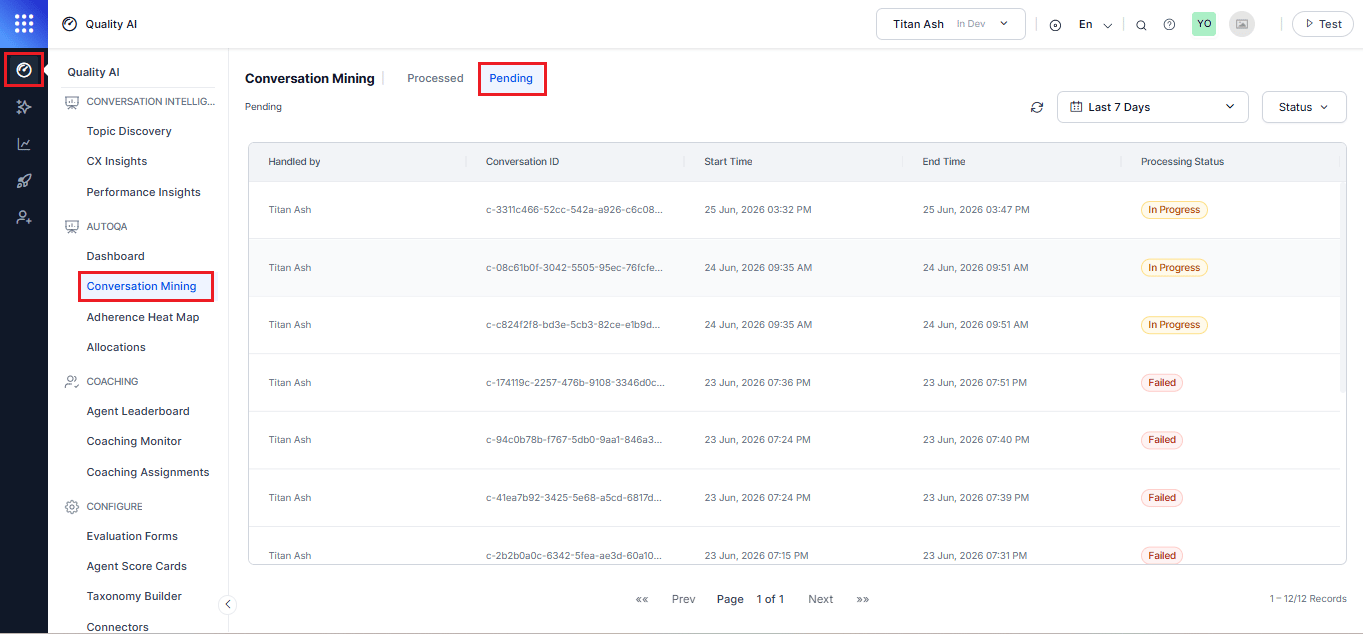 #### Pending Tab Columns
| **Column** | **Description** |
| --------------------- | -------------------------------------------------------------------- |
| **Handled By Agent** | Displays the name of the agent who handled the pending conversation. |
| **Conversation ID** | Displays the conversation identifier for the interaction. |
| **Start Date** | Displays the date when the conversation started. |
| **End Date** | Displays the date when the conversation ended. |
| **Processing Status** | Displays the current state of conversation processing. |
### Filter By Processing Status Values
Use the **Status** filter on the **Pending** tab to filter conversations by processing state.
| **Status or Filter Option** | **Description** |
| --------------------------- | --------------------------------------------------------------------------------------------------------------------------------------------------------- |
| **Select All** | Displays all pending conversations. |
| **Pending** | Displays conversations queued for processing. If **Scheduled Processing** is enabled, conversations remain queued until the next processing window. |
| **In Progress** | Displays conversations that are currently being processed. |
| **Failed** | Indicates that the conversation failed validation and isn't processed. Quality AI records the failure reason and may provide failure-specific categories. |
## Filter Conversations
Use the toolbar at the top of the Conversation Mining page to locate and manage conversations.
Filters are available from the Conversation Mining toolbar and apply to the currently selected Processed or Pending tab. Filter availability and behavior may vary depending on the selected tab and the type of filter.
| **Control** | **Description** |
| ----------------------- | --------------------------------------------------------------------------------------- |
| **Columns** | Include or exclude specific fields in the **Interactions** dashboard. |
| **Bookmarks** | Assign interactions to bookmarks and view all bookmarks associated with an interaction. |
| **Date and Time Range** | Select the time range for conversations. The default range is the last 7 days. |
| **Filters** | Open the filter panel to refine the displayed conversations. |
### Add New Filter
1. Select **Filters** from the Conversation Mining toolbar.
2. Select **+ Add New Filter**.
3. Select a filter category.
4. Configure the filter and apply it.
The selected filters apply to the active **Processed** or **Pending** tab.
***
## Filter Categories
The filter panel includes:
### Filter by Efficiency
Filter by **Efficiency** analyzes emotional, behavioral, and qualitative aspects of customer interactions using sentiment, interaction metadata, and operational filters.
#### Handled By
Filter conversations based on the type of agent that handled the interaction:
* **AI Agent**: Shows conversations handled by an AI Agent.
* **Human Agent**: Shows conversations handled by a Human Agent.
#### Channels
Use this filter to view conversations based on how the interaction took place and its direction.
**Chat**:
* **Inbound**: Shows chat conversations initiated by the customer.
* **Outbound**: Shows chat conversations initiated by an agent or the organization.
**Voice**:
* **Inbound**: Shows voice conversations initiated by the customer, such as incoming calls to an agent or AI Agent.
* **Outbound**: Shows voice conversations initiated by an agent or the organization, such as outgoing calls to a customer.
#### Audit Status
Filter conversations based on their audit status:
* **Assigned**: Conversations assigned for audit.
* **Audited**: Conversations that have completed an audit.
* **Not Assigned**: Conversations that aren’t assigned for audit.
* **Resolved**: Conversations with a resolved audit status.
* **Closed**: Conversations with a closed audit status.
* **Pending Agent Review**: Conversations awaiting agent review.
* **Pending Supervisor Review**: Conversations awaiting supervisor review.
#### Audit Allocations
Select **Audit Allocations** to filter and view interactions associated with specific audit batches or allocation groups directly from Conversation Mining without manually filtering individual Conversation IDs.
#### Duration Status
Select a **Duration Status** to control which interactions appear based on evaluation eligibility and duration:
| Option | Description |
| ------------------------ | ------------------------------------------------------------------------------------------------------------------------------ |
| **All** (default) | Displays all interactions regardless of duration. |
| **Evaluated** | Displays interactions whose duration meets the configured evaluation threshold and for which an evaluation score is generated. |
| **Below Threshold** | Displays interactions whose duration is below the configured evaluation threshold and therefore are excluded from scoring. |
| **Duration Unavailable** | Displays interactions where the required duration information is missing or the system can’t determine. |
#### Session ID
Enter a Session ID to find a specific conversation session.
#### Conversation ID
Enter a Conversation ID to find a specific conversation.
#### Custom Conversation ID
Enter a Custom Conversation ID to find a conversation using an organization-specific identifier.
#### Handled AI Agent
Filter conversations handled by a specific AI Agent.
#### Experience Flow
Select or search for the Experience Flow associated with an AI-handled conversation.
#### Human Agent
Filter conversations handled by a Human Agent.
#### Queues
Select one or more Queues associated with human-handled conversations.
#### Agents
Select one or more Agents to filter conversations handled by specific human agents.
#### Combined AI Agent and Human Agent Filters
When filters for both AI Agent and Human Agent are applied, Conversation Mining uses OR logic between the two agent types.
Results include conversations that match either the AI Agent criteria or the Human Agent criteria. Filters within each agent type continue to follow their configured filter behavior.
#### Advanced Performance Filters
Enable additional performance-based filters.
| Filter | Description |
| ------------------------------- | ---------------------------------------------------------------------- |
| **Average Handling Time (AHT)** | Filter using the minimum or maximum handling time (in seconds). |
| **Deviation from AHT** | Filter interactions based on deviation from the average handling time. |
| **Deviation %** | Filter interactions by the percentage deviation from AHT. |
| **Number of Transfers** | Filter interactions by the number of transfers. |
### Filter by Experience
This category helps analyze emotional and qualitative aspects of customer interactions using sentiment and emotion-based filters.
| Filter | Description |
| ---------------------- | ------------------------------------------------------------------------------------------------------------------------------------------------------------------------------------------------------------------ |
| **Avg. Waiting Time** | Select the average waiting time, in seconds, for the selected date range. |
| **Sentiment Trend** | Analyzes conversation sentiment across different stages using **Opening** and **Closing** sentiment options such as Positive, Neutral, Negative, or Any to evaluate customer experience and conversation outcomes. |
| **Emotions** | Helps identify interactions based on detected emotions such as Anger, Fear, Confusion, Sadness, and Happy for targeted emotional and behavioral analysis. |
| **Sentiment Score** | Set the minimum and maximum sentiment range for positive (higher) or negative (lower) sentiment. |
| **CSAT** | Filter by customer satisfaction score to view and drill down into interaction distribution across score ranges based on feedback responses. |
| **Configured Intents** | Filter by topic or intent across L1, L2, L3. Child lists update based on parent selection. |
| **Generated Intents** | Select the AI-generated or configured intents based on your intents. Select Configured Intent levels in order: L1 first, then L2, then L3. You must select at least one level to apply the filter. |
| **Overall Resolution** | Filter by Resolved or Unresolved (both selected by default). The system marks a conversation as resolved when it defines all applicable L3 intents. |
#### Pending Tab Columns
| **Column** | **Description** |
| --------------------- | -------------------------------------------------------------------- |
| **Handled By Agent** | Displays the name of the agent who handled the pending conversation. |
| **Conversation ID** | Displays the conversation identifier for the interaction. |
| **Start Date** | Displays the date when the conversation started. |
| **End Date** | Displays the date when the conversation ended. |
| **Processing Status** | Displays the current state of conversation processing. |
### Filter By Processing Status Values
Use the **Status** filter on the **Pending** tab to filter conversations by processing state.
| **Status or Filter Option** | **Description** |
| --------------------------- | --------------------------------------------------------------------------------------------------------------------------------------------------------- |
| **Select All** | Displays all pending conversations. |
| **Pending** | Displays conversations queued for processing. If **Scheduled Processing** is enabled, conversations remain queued until the next processing window. |
| **In Progress** | Displays conversations that are currently being processed. |
| **Failed** | Indicates that the conversation failed validation and isn't processed. Quality AI records the failure reason and may provide failure-specific categories. |
## Filter Conversations
Use the toolbar at the top of the Conversation Mining page to locate and manage conversations.
Filters are available from the Conversation Mining toolbar and apply to the currently selected Processed or Pending tab. Filter availability and behavior may vary depending on the selected tab and the type of filter.
| **Control** | **Description** |
| ----------------------- | --------------------------------------------------------------------------------------- |
| **Columns** | Include or exclude specific fields in the **Interactions** dashboard. |
| **Bookmarks** | Assign interactions to bookmarks and view all bookmarks associated with an interaction. |
| **Date and Time Range** | Select the time range for conversations. The default range is the last 7 days. |
| **Filters** | Open the filter panel to refine the displayed conversations. |
### Add New Filter
1. Select **Filters** from the Conversation Mining toolbar.
2. Select **+ Add New Filter**.
3. Select a filter category.
4. Configure the filter and apply it.
The selected filters apply to the active **Processed** or **Pending** tab.
***
## Filter Categories
The filter panel includes:
### Filter by Efficiency
Filter by **Efficiency** analyzes emotional, behavioral, and qualitative aspects of customer interactions using sentiment, interaction metadata, and operational filters.
#### Handled By
Filter conversations based on the type of agent that handled the interaction:
* **AI Agent**: Shows conversations handled by an AI Agent.
* **Human Agent**: Shows conversations handled by a Human Agent.
#### Channels
Use this filter to view conversations based on how the interaction took place and its direction.
**Chat**:
* **Inbound**: Shows chat conversations initiated by the customer.
* **Outbound**: Shows chat conversations initiated by an agent or the organization.
**Voice**:
* **Inbound**: Shows voice conversations initiated by the customer, such as incoming calls to an agent or AI Agent.
* **Outbound**: Shows voice conversations initiated by an agent or the organization, such as outgoing calls to a customer.
#### Audit Status
Filter conversations based on their audit status:
* **Assigned**: Conversations assigned for audit.
* **Audited**: Conversations that have completed an audit.
* **Not Assigned**: Conversations that aren’t assigned for audit.
* **Resolved**: Conversations with a resolved audit status.
* **Closed**: Conversations with a closed audit status.
* **Pending Agent Review**: Conversations awaiting agent review.
* **Pending Supervisor Review**: Conversations awaiting supervisor review.
#### Audit Allocations
Select **Audit Allocations** to filter and view interactions associated with specific audit batches or allocation groups directly from Conversation Mining without manually filtering individual Conversation IDs.
#### Duration Status
Select a **Duration Status** to control which interactions appear based on evaluation eligibility and duration:
| Option | Description |
| ------------------------ | ------------------------------------------------------------------------------------------------------------------------------ |
| **All** (default) | Displays all interactions regardless of duration. |
| **Evaluated** | Displays interactions whose duration meets the configured evaluation threshold and for which an evaluation score is generated. |
| **Below Threshold** | Displays interactions whose duration is below the configured evaluation threshold and therefore are excluded from scoring. |
| **Duration Unavailable** | Displays interactions where the required duration information is missing or the system can’t determine. |
#### Session ID
Enter a Session ID to find a specific conversation session.
#### Conversation ID
Enter a Conversation ID to find a specific conversation.
#### Custom Conversation ID
Enter a Custom Conversation ID to find a conversation using an organization-specific identifier.
#### Handled AI Agent
Filter conversations handled by a specific AI Agent.
#### Experience Flow
Select or search for the Experience Flow associated with an AI-handled conversation.
#### Human Agent
Filter conversations handled by a Human Agent.
#### Queues
Select one or more Queues associated with human-handled conversations.
#### Agents
Select one or more Agents to filter conversations handled by specific human agents.
#### Combined AI Agent and Human Agent Filters
When filters for both AI Agent and Human Agent are applied, Conversation Mining uses OR logic between the two agent types.
Results include conversations that match either the AI Agent criteria or the Human Agent criteria. Filters within each agent type continue to follow their configured filter behavior.
#### Advanced Performance Filters
Enable additional performance-based filters.
| Filter | Description |
| ------------------------------- | ---------------------------------------------------------------------- |
| **Average Handling Time (AHT)** | Filter using the minimum or maximum handling time (in seconds). |
| **Deviation from AHT** | Filter interactions based on deviation from the average handling time. |
| **Deviation %** | Filter interactions by the percentage deviation from AHT. |
| **Number of Transfers** | Filter interactions by the number of transfers. |
### Filter by Experience
This category helps analyze emotional and qualitative aspects of customer interactions using sentiment and emotion-based filters.
| Filter | Description |
| ---------------------- | ------------------------------------------------------------------------------------------------------------------------------------------------------------------------------------------------------------------ |
| **Avg. Waiting Time** | Select the average waiting time, in seconds, for the selected date range. |
| **Sentiment Trend** | Analyzes conversation sentiment across different stages using **Opening** and **Closing** sentiment options such as Positive, Neutral, Negative, or Any to evaluate customer experience and conversation outcomes. |
| **Emotions** | Helps identify interactions based on detected emotions such as Anger, Fear, Confusion, Sadness, and Happy for targeted emotional and behavioral analysis. |
| **Sentiment Score** | Set the minimum and maximum sentiment range for positive (higher) or negative (lower) sentiment. |
| **CSAT** | Filter by customer satisfaction score to view and drill down into interaction distribution across score ranges based on feedback responses. |
| **Configured Intents** | Filter by topic or intent across L1, L2, L3. Child lists update based on parent selection. |
| **Generated Intents** | Select the AI-generated or configured intents based on your intents. Select Configured Intent levels in order: L1 first, then L2, then L3. You must select at least one level to apply the filter. |
| **Overall Resolution** | Filter by Resolved or Unresolved (both selected by default). The system marks a conversation as resolved when it defines all applicable L3 intents. |
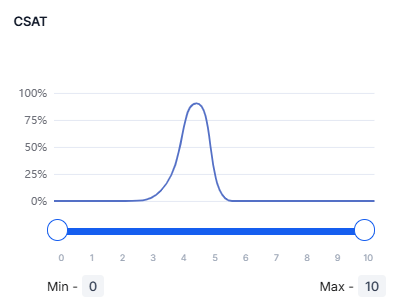 You can view the CSAT and Avg. Waiting Time filter parameters only when the Connector is in disabled mode.
### Filter by Behavior
This category analyzes filters based on agent conduct and interaction dynamics.
| Filter | Description |
| ---------------------------------------- | ----------------------------------------------------------------------------------------------------------------------------------------------------------------------------------------------------------------------------------------------------------------------------------------------------------------------------------------------------------------- |
| **Metric Name** | Enables you to select a single evaluation metric (shown as a tag) and filter interactions by Pass or Fail. Manual metrics are visually indicated for audit identification. |
| **Metric Qualification** | Filter interactions by metric outcome. When you select a Dynamic By Question metric in the Metric Name filter, the system enables the following options:
You can view the CSAT and Avg. Waiting Time filter parameters only when the Connector is in disabled mode.
### Filter by Behavior
This category analyzes filters based on agent conduct and interaction dynamics.
| Filter | Description |
| ---------------------------------------- | ----------------------------------------------------------------------------------------------------------------------------------------------------------------------------------------------------------------------------------------------------------------------------------------------------------------------------------------------------------------- |
| **Metric Name** | Enables you to select a single evaluation metric (shown as a tag) and filter interactions by Pass or Fail. Manual metrics are visually indicated for audit identification. |
| **Metric Qualification** | Filter interactions by metric outcome. When you select a Dynamic By Question metric in the Metric Name filter, the system enables the following options:
- **Pass**: Trigger detected, and the response matched the expected utterance (Adhered).
- **Fail**: Trigger detected, but the response didn't match the expected utterance (Non-Adhered). |
| **Language** | Select a conversation language to add from the dropdown list. |
| **Empathy Score** (Human Agent only) | Measures how well the agent responds to the customer's emotional state. A higher score indicates a more empathetic interaction. |
| **Crutch Word Score** (Human Agent only) | Measures the use of filler words (for example, `um`, `uh`) by the agent. A higher score indicates greater use of crutch words. |
| **Agent Playbook Adherence** | Displays the Agent AI playbook adherence percentage for an interaction. |
| **Kore Evaluation Score** | Displays the automated QA score for an interaction, based on the evaluation form assigned to an interaction’s queue. |
| **Fatal Interactions** | The system displays interactions that contain fatal issues and excludes them from evaluation scoring. |
| **Validation Failure** | Displays interactions that fail validation and aren't processed for evaluation. You can use Form, Channel, and Language to refine results. |
**Agent Playbook Adherence** is available only when a Playbook is configured for the selected form.
### Filter by Keywords
This enables you to search, filter, and review conversations using specific keywords or phrases. You can filter by included or excluded keywords and by speaker, with results linked directly to the QA audit screen.
| Category | Details |
| ----------------------------------- | ------------------------------------------------------------------------------------------------------------------------------------------------------------------------------------------------------------------------------------------------------------------------------------------------------------------------------------------------------------------------------------------------------------------------------------------ |
| **Filter by Keywords** | Helps you search, filter, and review conversations using specific keywords or phrases. Supports included/excluded keywords and speaker-based filtering, with results linked directly to the QA audit screen. |
| **Conditions (AND / OR)** | Select how the system evaluates multiple included keywords.
- **AND**: All specified keywords must appear in the conversation. For example: **Include** `Billing AND frustrated` (both speakers) and **Exclude** `Resolved` (both speakers).
- **OR**: At least one keyword must display. For example, include `Refund OR Money Back` (customer only) and Exclude `Processed` (agent only), and `Completed` (both speakers). |
| **Conversation Including Keywords** | Add keywords to include conversations in results. Select a speaker (**Agent only**, **Customer only**, or **Both**) and use **+ Add Keyword** to include up to 8 keywords. |
| **Conversation Excluding Keywords** | Add keywords to exclude conversations from results. Select speaker scope (**Agent only**, **Customer only**, or **Both**) and use **+ Add Exclude Keyword** to add up to 5 exclusions. All exclusions follow **AND NOT** logic. |
| **Audit Navigation and Filtering** | Enables quick filtering and navigation by keyword or QA question, with auto-scrolling of transcripts and relevance-based matching. |
| **Apply Keywords Action** | Applies the selected include or exclude keyword filters and updates results. |
***
### Filter by Custom Fields
This helps to refine interactions using business-specific metadata from Express File or Agent AI integrations. Custom fields are dynamically available based on the selected date range. The system excludes interactions that doesn't include the selected field from results.
To apply a custom field filter:
1. Select **Custom Fields** from the **Filter By** panel.
2. Select the **Key** from the dropdown. For example: **Account ID**.
3. Enter the matching **Value**.
4. (Optional) Select **+ Add Custom Field** to include additional key-value pairs.
5. Select **Apply** or **Save & Apply**.
 Conversations that don't carry the selected custom field are excluded from results entirely.
**Filtered Keywords Interactions**
Displays the count of interactions matching the selected keywords (for example, `Filtered Interactions: 22`).
### Connector-Dependent Filters
The availability of certain filters depends on the Connector configuration. When Quality AI Express is disabled under Conversation Sources, the following filters are disabled:
* **By Experience**: Avg. Waiting Time, AHT, and No. of Transfers
* **By Efficiency**: CSAT and Avg. Waiting Time
When Quality AI Express is enabled, these filters are available when supported by the Connector configuration.
The system automatically disables filters that the current Connector configuration doesn’t support, so you can’t apply them.
***
## Manage Saved Filters
Use the **Saved Filters** UI to apply, store, and manage filter configurations on the Conversation Mining dashboard.
| Action | Description |
| ------------------------- | ----------------------------------------------------------------------------------------------------------------------- |
| **Apply Filters** | Stores current settings as an Unsaved Filter. |
| **Save & Apply** | Saves and names filters for audit allocation. Saving is optional if audits aren't used. |
| **Save Filters** | Saves the current filter configuration with a name and optionally sets it as the default on the Interactions dashboard. |
| **View Saved Filters** | Shows all saved and unsaved filters. |
| **Filtered Interactions** | Displays a real-time count of matching conversations. |
| **Customization Options** | Includes Copy, Mark as Default, Edit, and Delete filters. |
If interactions aren't used for audit allocation, you can apply the current filters without saving them as a reusable saved filter.
Conversations that don't carry the selected custom field are excluded from results entirely.
**Filtered Keywords Interactions**
Displays the count of interactions matching the selected keywords (for example, `Filtered Interactions: 22`).
### Connector-Dependent Filters
The availability of certain filters depends on the Connector configuration. When Quality AI Express is disabled under Conversation Sources, the following filters are disabled:
* **By Experience**: Avg. Waiting Time, AHT, and No. of Transfers
* **By Efficiency**: CSAT and Avg. Waiting Time
When Quality AI Express is enabled, these filters are available when supported by the Connector configuration.
The system automatically disables filters that the current Connector configuration doesn’t support, so you can’t apply them.
***
## Manage Saved Filters
Use the **Saved Filters** UI to apply, store, and manage filter configurations on the Conversation Mining dashboard.
| Action | Description |
| ------------------------- | ----------------------------------------------------------------------------------------------------------------------- |
| **Apply Filters** | Stores current settings as an Unsaved Filter. |
| **Save & Apply** | Saves and names filters for audit allocation. Saving is optional if audits aren't used. |
| **Save Filters** | Saves the current filter configuration with a name and optionally sets it as the default on the Interactions dashboard. |
| **View Saved Filters** | Shows all saved and unsaved filters. |
| **Filtered Interactions** | Displays a real-time count of matching conversations. |
| **Customization Options** | Includes Copy, Mark as Default, Edit, and Delete filters. |
If interactions aren't used for audit allocation, you can apply the current filters without saving them as a reusable saved filter.